Search This Blog

Friday, 25 November 2011

Amazing USB a small desktop inside !!!!!!

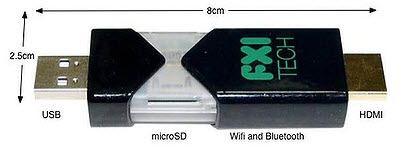
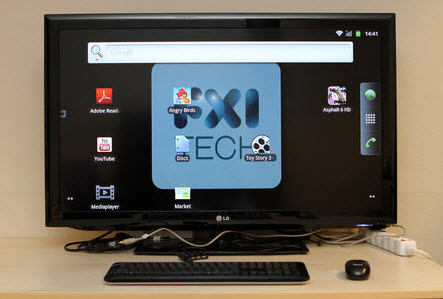
Think powerful portable cellphones and tablets are the future of mobile computing?, how about a small usb-stick sized computing powerhouse with dual-core 1.2-GHz CPU, 802.11n Wi-Fi, Bluetooth, HDMI-out and a microSD card slot having more then enough juice to directly boot into a full-fledged desktop operating system. Codenamed "Cotton Candy" this compact computing powerhouse is already a reality.
Developed by an Norwegian company "FXI Technologies" weighing only 21 grams the tiny PC enables “Any Screen Computing” - the device lets users attach the stick to any HDMI compatible screen and boot into an desktop operating system (currently demoed using preloaded Android 2.3 but specs shows it should support other OS's soon) and let them enjoy full computing including multimedia, computing, phone etc.
Surprisingly Small USB Stick Computer With Dual Core Processor, WiFI, Bluetooth And Card Reader
Operating-system Booted From The Mini Disk
Sadly, users won’t see this as a "consumer product" anytime soon - as the company plans to sell "Cotton Candy" to developers and OEMs for now.
Tuesday, 22 November 2011

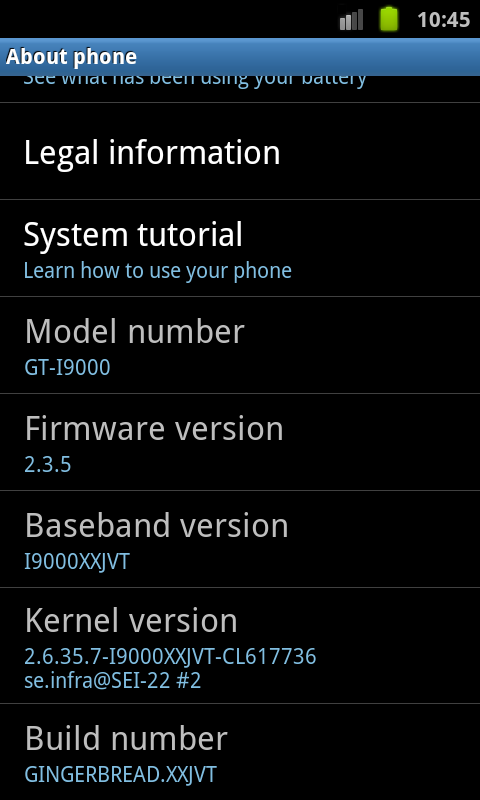
How To Download Latest Google Android OS v 2.3.5 XXJVT On Samsung Galaxy SI9000 And Flash Using Cross-platform Heimdall Flashing Tool

If you are looking for an android firmware flashing tool like ODIN for Linux or MAC, free cross-platform utility Heimdall is the answer. While Odin is a leaked internal Samsung software, Heimdall is an open-source, cross-platform tool suite to flash ROM's onto Samsung Galaxy S devices - Heimdall uses the same protocol as Odin but is easier to use and supports cross-platform operation.
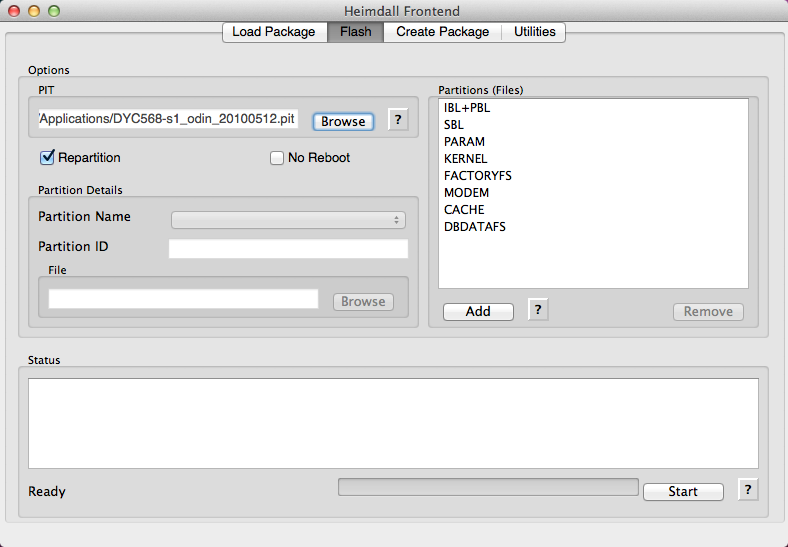
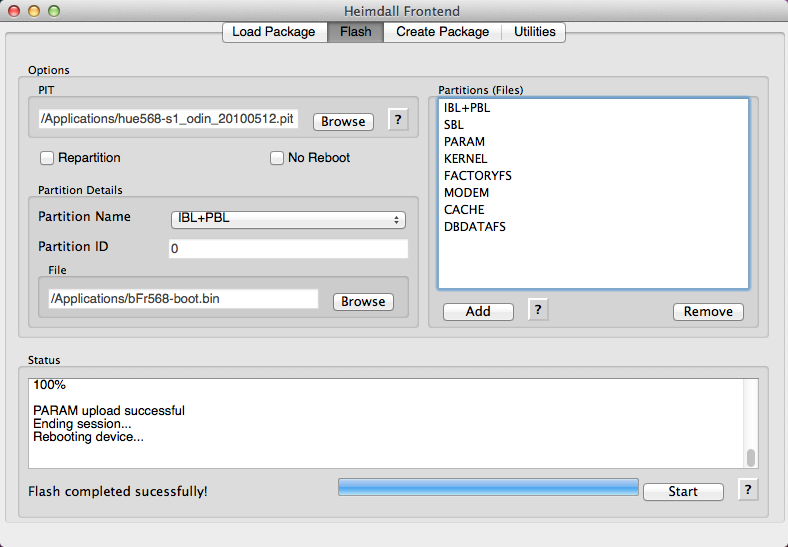
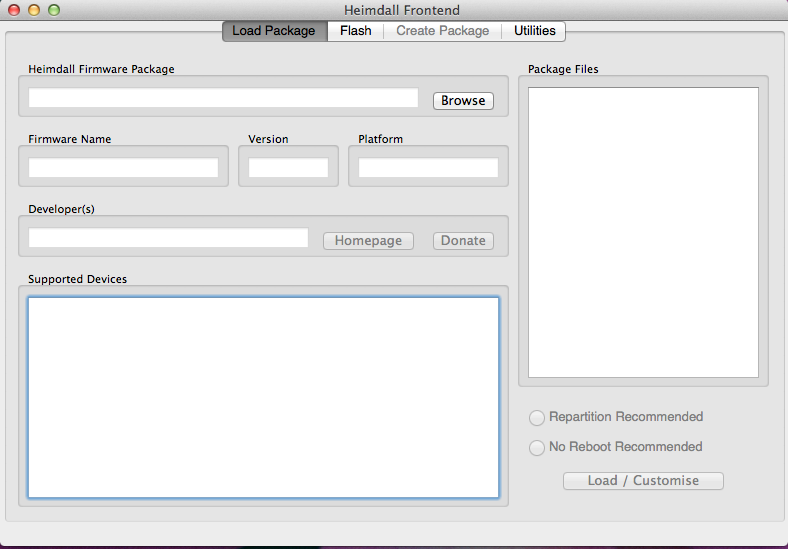
Here is an step-by-step illustrated tutorial on how to flash the latest Heimdall stock firmware packages for GT-I9000 (2.3.5, XXJVT) on Samsung Galaxy S I9000.

Heimdall Flashing Tool

Heimdall Flashing Tool
  1. Download and install Heimdall for your desktop operating system (Windows, Linux or MAC).
  2. Download the Heimdall Google Android ROM v 2.3.5 XXJVT and save on your computer.
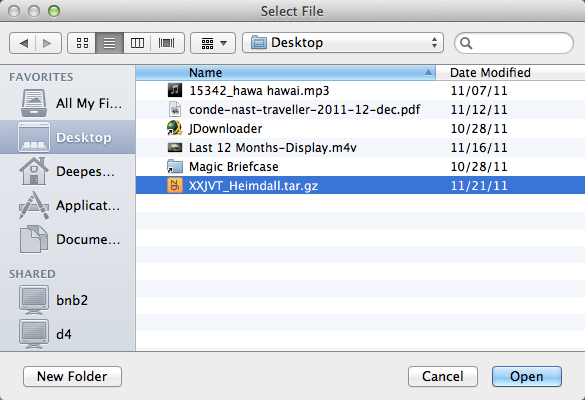
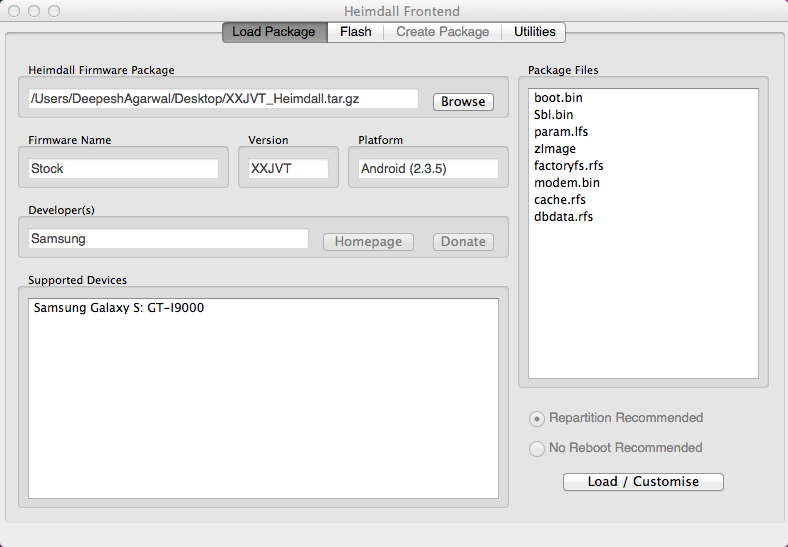
  3. Launch Heimdall and click "Browse" and select the XXJVT_Heimdall.tar.gz file downloaded in previous step, Heimdall will extract the archive.
  4. If the archive is ok, Heimdall will display the contents as below.
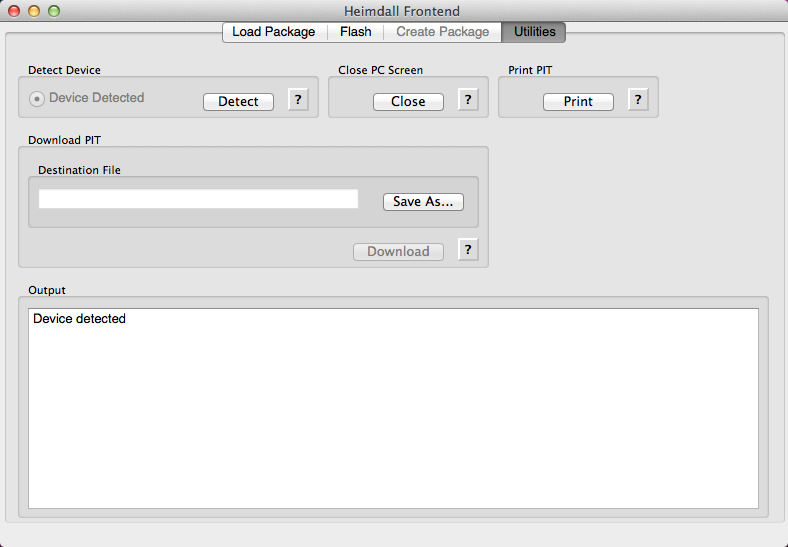
  5. Switch off your Samsung Galaxy S I9000 and make sure you are into the download mode (When completely turned off, press and hold the Volume Down + Home + Power buttons simultaneously and you should see a screen with a big yellow triangle and the Android robot working on construction on your phone screen), make sure Heimdall has detected the device in "Download Mode".
  6. Goto the "Flash Tab" and Click "Start" to initiate the flashing process. (Be cautious flashing may brick your device)
  7. Let the process complete and you now have a successfully flashed phone with latest Android software.

How to deal with Simple Cursor adapter

Here is the brief tutorial of using the simple cursor adapter .This adapter get binded with the list view .This is used in case when you retrieve the value from the database and you want to show the values in the list view .So suppose you fetched the data from the database like this :-

public Cursor fetchbylevel(int levels) throws SQLException {
        Cursor mCursor = database.query(true, DATABASE_TABLE, new String[] {
                KEY_SCORE , KEY_NAME, KEY_LEVEL  },
                KEY_LEVEL + "=" +levels, null, null,null,  KEY_SCORE+" DESC", null);
       
        if (mCursor != null) {
            mCursor.moveToFirst();
        }
        return mCursor;
    }
Now the above method is returning the whole set of tuples in the cursor now we have to show this cursor in the database in the required manner suppose in the above I want to show the NAME and SCORE of the player in one activity. So that can be done  by binding the listview by the simple cursor adapter. For that you first have to create an xml file the file code is given below
<?xml version="1.0" encoding="utf-8"?>
<LinearLayout android:id="@+id/LinearLayout01"
    android:layout_width="fill_parent" android:layout_height="fill_parent"
    xmlns:android="http://schemas.android.com/apk/res/android">
    <LinearLayout android:id="@+id/LinearLayout02"
        android:layout_width="130px" android:layout_height="40px" android:gravity="left">
        <TextView android:text="manasp" android:id="@+id/name"
            android:layout_width="wrap_content" android:layout_height="wrap_content"
            android:textSize="40dp" android:textColor="#ff0000" android:typeface="serif"></TextView>
    </LinearLayout>
    <LinearLayout android:id="@+id/LinearLayout03"
        android:layout_width="80px" android:layout_height="40px"
        android:gravity="right">
        <TextView android:text="96" android:id="@+id/score"
            android:layout_width="wrap_content" android:layout_height="wrap_content"
            android:textSize="40dp" android:textColor="#00ff00"></TextView>
    </LinearLayout>
</LinearLayout>


So in the above we have defined the xml named as lists.xml in which we defined the layout which is to be shown in the list view binded with simple cursor adapter. Now we have to write the one line code where we have to bind the list view .

String from[]={dataadapter.KEY_NAME,dataadapter.KEY_SCORE};
            int to[]={R.id.name,R.id.score};
            adapter=new SimpleCursorAdapter(this, R.layout.lists, cs, from, to);
            lv.setAdapter(adapter);
The above code represents the  two String array one is from[] and the other is to[]. In from array we have to give the attributes to display from the database and in to we have to pass the xml id of the view which was created in the lists.xml .

IF YOU LIKE THIS POST PLEASE COMMENT ANY QUERIES REGARDING THE ABOVE POST CAN BE ASKED !!!!!!!

Friday, 18 November 2011

A big bud in android 4.0 Face Unlock feature check this out

One of the most awaited feature of Google's upcoming major "Android OS" upgrade "Ice Cream Sandwich", is the new Face Unlock feature which allows users to unlock their devices by just looking into the front-facing camera utilizing some smart "Face recognition" technology.
The question is can the "face unlock" feature be fooled using a photo, the answer is in the video below :

Monday, 14 November 2011

How to add Custom Fonts in textview

we’re going to examine the process of using custom fonts. We’ll use this font for demonstration purposes. Download it and place the TTF file in the ./assets directory (create it if it doesn’t exist yet).
We’re going to use a basic layout file with a TextView, marked with an id of “custom_font” so we can access it in our code.
  1. <?xml version="1.0" encoding="utf-8"?>  
  2. <LinearLayout xmlns:android="http://schemas.android.com/apk/res/android"  
  3.               android:orientation="vertical"  
  4.               android:layout_width="fill_parent"  
  5.               android:layout_height="fill_parent"  
  6.         >  
  7.   
  8.     <TextView  
  9.             android:id="@+id/custom_font"  
  10.             android:layout_width="fill_parent"  
  11.             android:layout_height="wrap_content"  
  12.             android:text="This is the Chantelli Antiqua font."  
  13.             />  
  14.   
  15. </LinearLayout>  
Open your main activity file and insert this into the onCreate() method:

  1. TextView txt = (TextView) findViewById(R.id.custom_font);  
  2. Typeface font = Typeface.createFromAsset(getAssets(), "Chantelli_Antiqua.ttf");  
  3. txt.setTypeface(font);  
The Typeface class contains a static builder method createFromAsset, which takes an AssetManager as its first parameter and a path to the file in the second argument. We’re handing it the default asset manager and the name of the font file because it’s located in the root of the “assets” folder. Once we’ve got an instance of our custom typeface, all that’s left is a call to TextView’s setTypeface() method. Simple, huh? It might also be wise to organize your fonts into a subdirectory if your assets directory is packed with other files.
There are a few potential problems that custom typefaces come with, though. Ellipsizing might not work correctly if the font doesn’t have a glyph for the special ellipsis character and internationalization might not be supported, as your font would have to handle any language that users might input. You’ll also want to keep an eye on the total size of your custom fonts, as this can grow quite large if you’re using a lot of different typefaces.
Android TextView: Using a Custom Android Font

Monday, 7 November 2011

Whats There In GingerBread android 2.3

Well you all heard about this version of android actually it has now currently surpassed its predecessor android 2.2(froyo). So you may have some FAQ's related to this version of android actually I also had and that questions I am sharing with you .
What are the biggest new features in Android Gingerbread?
Google's Android Gingerbread introduces a slew of improvements to the operating system, both on the surface and under the hood. The most significant core changes -- in terms of what will directly affect users -- revolve around four main areas:
  • Faster speed. Google promises Gingerbread is its "fastest version of Android yet," thanks to its improved responsiveness and power management.
  • Better Android battery life. According to Google, Gingerbread "takes a more active role" in policing apps that unnecessarily drain your phone's battery. With Gingerbread, the system will automatically kill an application if it's using too much of your device's power while running in the background.
  • Better application management. In addition to the automated app policing system, Gingerbread introduces an expanded app settings area that lets you easily see detailed information about each app's battery usage. The updated "Manage Applications" tool, meanwhile, is basically a built-in task manager: It lets you review all of your active applications, see what types of resources each one is utilizing, and manually force-stop any program if something is wrong.
Android Gingerbread: PowerAndroid Gingerbread:
  • An updated user interface. Android's UI gets a refresh with Gingerbread. And that brings us to our next question...
What'll look different in Android Gingerbread?
Android Gingerbread isn't the massive redesign we've been hearing about -- that may still be ahead with Google's next major release, Honeycomb -- but there are a number of interface changes you'll notice right away. Among them:
  • An updated color scheme. Gingerbread introduces a "simplified visual theme" that includes a darker notification bar and black-based menus.
Android Gingerbread: UIAndroid Gingerbread: UI
  • A new keyboard. Android Gingerbread features a redesigned on-screen keyboard that's said to be faster and more intuitive. In addition to its updated form, the keyboard now supports multitouch input and a "smart" autocorrect function.
Android Gingerbread: Keyboard
  • Improved cut-and-paste. Android Gingerbread allows you to long-press on any Web page or text input field to select words and copy them to the system clipboard.
Android Gingerbread: Cut and Paste
  • Easier file management. A new integrated Downloads app lets you access and manage every file you download, whether you get it via the Internet, e-mail, or through any other program.
Android Gingerbread: Download Manager
  • Better camera management. An updated Android camera app provides access to multiple cameras for devices with front- and rear-facing lenses.
Android Gingerbread: Camera

What new technologies will Gingerbread support?
My, you're just full of good questions today. Android Gingerbread adds support for several new kinds of technology that future Android phones -- including the newly announced Google Nexus S -- will offer. Among them:
  • Near Field Communication (NFC). As first revealed by Google CEO Eric Schmidt last month, Gingerbread will offer full support for NFC. If your phone has the necessary chip (the Nexus S does), you'll be able to tap your device against special NFC sensors to exchange information and eventually even make credit card payments.
  • Internet calling. Gingerbread enables support for SIP-based Internet phone calls. Like with the NFC function, though, devices have to support it -- and in what may end up being a barrier for many of us, the carriers have to sign off on it, too.
  • Lots of sensors. Android Gingerbread can read a whole bunch of new kinds of sensors, including gyroscopes, gravity sensors, and barometers -- yes, barometers. Measuring atmospheric pressure, evidently, is something future Android apps may do.
  • Extra-large screen sizes. Gingerbread's programming tools offer support for devices with larger-than-normal displays -- in other words, tablets. While the bulk of Android's tablet optimization is expected to arrive with Honeycomb, this is certainly a step in that direction.
What about gaming -- isn't Gingerbread supposed to get better there?
Indeed, it is. As you'll see in Google's official Android 2.3 introduction video, Gingerbread has a host of new tools designed to help developers bring high-end games to the Android platform. You can read the technical specifics, if you're interested, at Google's Android Developers site.
OK -- so when will my phone get the Gingerbread upgrade?
That, my friends, is the million-dollar question. For the most current info available, click over to this link Android 2.3 upgrade list.
If you're still waiting for Froyo, be sure to check out this Android 2.2 upgrade list, too. It's always kept up-to-date with the latest Froyo info available for all devices.

SO ANY QUERIES RELATED TO THIS POST ARE HEARTILY WELCOMED !!!!!!


Friday, 4 November 2011

Shocking Fact About Akash Tablet !!!!!


Finally India government has announced the most awaited cheapest android tablet Aakash  in India. The android tablet Aakash was revealed by the Union Human Resources Development Minister Kapil Sabil.
Aakash is powered by a 366 MHz processor with additional HD video co-processor. It has 256 MB RAM and 2GB internal memory. The memory can be expanded using a memory card to 32 GB. Two USB ports are also available for this cheap tablet. The operating system of Aakash tablet is Android version  2.2.
Aakash tablet will be available at a reduced rate of Rs.1200 for students but the price of commercial version of Aakash tablet in India will be Rs.3000.

FACT:- ACTUALLY THE WORLDS CHEAPEST TABLET HAS A DRAWBACK AS IT SUPPORTS THE ANDROID MARKET BUT DUE TO LOW HARDWARE CONFIGURATION IT DOESN'T SUPPORT LATEST TABLET ANDROID 2.2 APPLICATIONS SO THIS IS A LITTLE SHOCK FOR THE GEEKS WHO WANT TO ENJOY THEIR LATEST TABLETS APPLICATIONS ON THEIR TAB

AND READERS CAN GIVE THEIR VIEWS ABOUT THIS TABLET FACT AND CAN QUERY ANYTHING REGARDING THIS POST !!!!!